Invoicing and payment tools, connected to your AI

Get Paid. Know where your payments are. Just ask your AI.

Autobooks now connects to ChatGPT and Claude, so you can send invoices, track your payments, and keep up with your customers from the AI you already use. Your bank details always stay separate.


Login

07-business-snapshot

Focus on your business. Let your AI handle the admin work.

With ChatGPT or Claude connected to Autobooks, you can handle routine tasks like sending invoices or chasing late payments, get real insights into how your small business is performing, use AI to spot new opportunities. Wondering what else you can do? Connect your Autobooks account and ask in your own words.

Send an invoice

Create it and send it, just by asking.

Send an invoice to Amanda Chen for $685 for fall cleanup, due in 30 days

Invoice sent to Amanda Chen for $685.00 for fall cleanup, due in 30 days.

Invoice #1042 Coming due
ToAmanda Chen
Amount$685.00
ServiceFall Cleanup
DueNov 14
Message
Send an invoice to Amanda Chen for $685 for fall cleanup,
due in 30 days

Examples are for illustration only. Your AI's actual responses, including how they look, will vary based on the AI tool you use, how you ask, and your Autobooks data. Responses are not financial, tax, legal, or accounting advice.

Connect your AI with confidence

Autobooks protects your business. Put your AI to work, while keeping your bank details separate.


edit

Your AI can create and edit

  • Customers
  • Invoices (create, send, and cancel)
  • Products and services
  • Checkout Pages
visibility

Your AI can read

  • Your business profile
  • Invoice totals and how quickly customers pay
  • Invoices and their status
  • Customer contact info and balances
  • Products and services, including pricing and sales tax
  • Autobooks payment activity
  • Checkout Pages and their links
shield

Your AI can never

  • Move money or make payments
  • Send transfers or issue refunds
  • See full account, routing, or card numbers
  • See personal information like Social Security numbers
  • See your online banking password

Common questions about your AI and Autobooks

What is Autobooks, and how do I get it?

Autobooks is a set of invoicing, payment, and bookkeeping tools that small businesses use right inside their bank's online banking. If your bank offers Autobooks, you'll find it in your online banking.

Which AI tools can I connect to Autobooks?

Small businesses can connect ChatGPT or Claude to Autobooks. Once connected, you can send invoices, check payment status, and follow up on past-due invoices by asking your AI in your own words. 

To connect other AI tools, on the AI Agents page, choose Other agents, and then copy the Autobooks MCP server address shown. Your AI tool must support signing in with an OAuth client metadata document. If it asks you for a Client ID or Client Secret, it isn't supported yet. 

Visit our Support Center to learn more about connecting your AI tools to Autobooks.

What can I ask my AI to do in Autobooks?

Once ChatGPT or Claude is connected to Autobooks, you can ask it to send invoices, check payment status, see which invoices are past due, and send reminders to your customers.

How do I connect my Autobooks account to ChatGPT or Claude?

First, log in to online banking at your bank, open Autobooks account, and select AI Agents in the menu. 

To connect ChatGPT:

  1. Click Connect ChatGPT. A new tab opens with the Autobooks server address. 
  2. In ChatGPT, open Settings → Apps & Connectors.
  3. Under Advanced settings, turn on Developer mode.
  4. Choose Create and enter the Autobooks server address. 
  5. Back in Autobooks, the ChatGPT tile shows Connected.

To connect Claude:

  1. Click Connect Claude. A new browser tab opens. 
  2. On the new tab, click Continue to Claude. Claude opens with Autobooks already filled in. 
  3. Sign in to Claude if asked, then confirm and click Connect. 
  4. Back in Autobooks, the Claude tile shows Connected and today's date. Start a new chat in Claude and ask questions about your business.

Visit our Support Center to learn more about connecting your AI tools to Autobooks.

Can ChatGPT or Claude see my bank account details?

No. When connected to Autobooks, your AI only sees your Autobooks activity, like your business profile, customers, invoices, products and services, Checkout Pages, and Autobooks payment activity. It never sees your bank account number, routing number, full card numbers, personal information like your Social Security number, or your passwords.

Visit our Support Center to learn more about connecting your AI tools to Autobooks.

Can my AI move money or make payments in Autobooks?

No. Whether you connect ChatGPT or Claude, your AI can never move money, make payments, send transfers, or issue refunds through Autobooks.

Can I send invoices from ChatGPT or Claude?

Yes. Once connected to Autobooks, you can ask ChatGPT or Claude to create and send invoices to your customers, in your own words. Every invoice you send this way is saved in Autobooks. You can also ask it to send reminders on past-due invoices. 

Will my AI send invoices without confirmation?

An invoice your AI creates is final, not a draft, and is emailed to your customer immediately. To review it first, ask the agent to not send it, then ask it to send the invoice when you're ready.

How is my Autobooks data handled in ChatGPT or Claude?

When you connect ChatGPT or Claude to Autobooks, your AI can only access the Autobooks activity listed above. How ChatGPT or Claude handles your conversations is governed by your settings and agreement with that provider. You can review those settings in your ChatGPT or Claude account.

Can I disconnect my AI at any time?

Yes. You can disconnect ChatGPT or Claude from Autobooks anytime. 

In Autobooks, choose AI Agents in the menu. Each connected AI tool shows Connected and the date you connected. 

Click Disconnect, then click Disconnect again to confirm. The AI tool loses access immediately. Its tile shows Disconnected and the date, and you can connect it again at any time.

Autobooks in partnership with your financial institution, delivers the tools that help businesses thrive.


When it comes to the health of small businesses, cash flow is at the top of the list. Help them shorten the time it takes to get paid by making it easier for them to get paid: 95% of Autobooks users are paid within five business days after sending an invoice. 

smb-owner-6@2x
Sending an invoice shouldn’t be complicated. 

Simplicity saves time. Businesses can send a quick invoice via email through any mobile device in just a few taps. Tracking payments is just as easy with the at-a-glance dashboard.  

smb-owner-5@2x
Payments should be easy to track.

With an at-a-glance screen that includes color coding, businesses can quickly see who’s paid and who’s past due. View invoices, resend, cancel and more with just a few clicks.

 
smb-owner-4@2x
Processing fees should be easy to understand. 

Knowing up front what a business will pay to accept payments is important. No matter what card end customers uses, the processing fees are always the same. 

Getting started with online invoicing


How it works for your customers

When your business customers are ready to send an invoice that’s easy for their customers to pay, online invoicing through Autobooks and your financial institution is the way to go.

Autobooks invoices.
Easy to send, even easier to pay.

1-icon
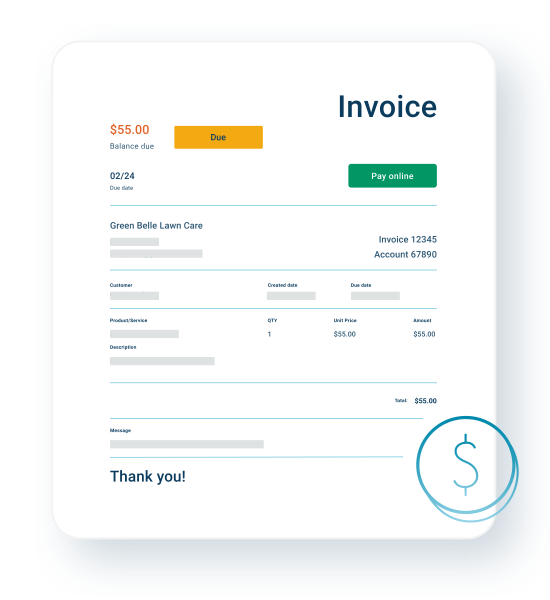
Send an invoice from anywhere, mobile or desktop. Business customers fill out the basic fields on the invoice inside online or mobile banking, then click send.
2-icon
Invoices are delivered via email. Paying customers can click on a link from their email to view and pay.
3-icon
They can pay using any major card, including American Express®, or by ACH bank transfer. Business customers only pay 3.49% per card transaction, and 1.00% per ACH transaction.

*These are typical rates, but may vary based on the partnering financial institution. Please contact your bank or credit union to learn more.

4-icon
Funds go directly into the business customer's checking account and are usually deposited within two business days. They’re never tied up or held by another platform.

Set your business customers up for success — offer invoicing that's a basic feature of business banking.

Autobooks offers a simple and trackable way for businesses to get paid — no matter if they're starting out or already have a system in place. 

invoicing-graphic

Make it easy for your customers to get paid. 


When businesses give customers flexibility in how they pay, it helps to shorten the time it takes to get paid. That’s why 95% of Autobooks users are paid within five business days after sending an invoice.
send-invoice-tile-orange_ILL

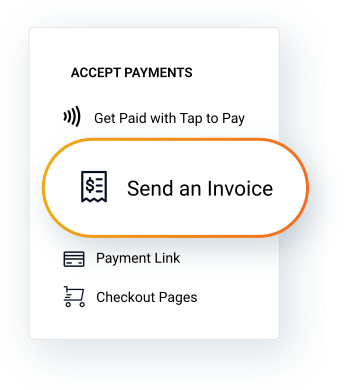
Customers send invoices directly inside online or mobile banking. 


Why make your business customers maintain another payment app when they don’t have to? Instead, they can rely on a platform that they already trust, and is always secure and easy to use. Your customers just log in and click ‘Send an invoice’ to get started.
fee_graphic orange

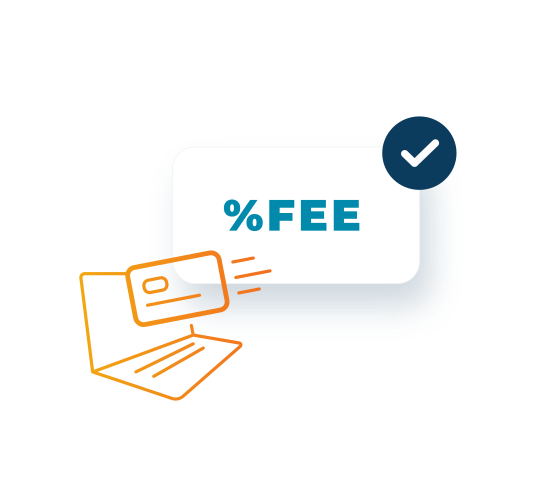
Customers know how much they will pay for every transaction. 


When your business customers accept an online payment through Autobooks and your financial institution, they'll see a single processing fee. Good news: our fee is the same no matter what card their customer uses.
invoice-builder-graphic

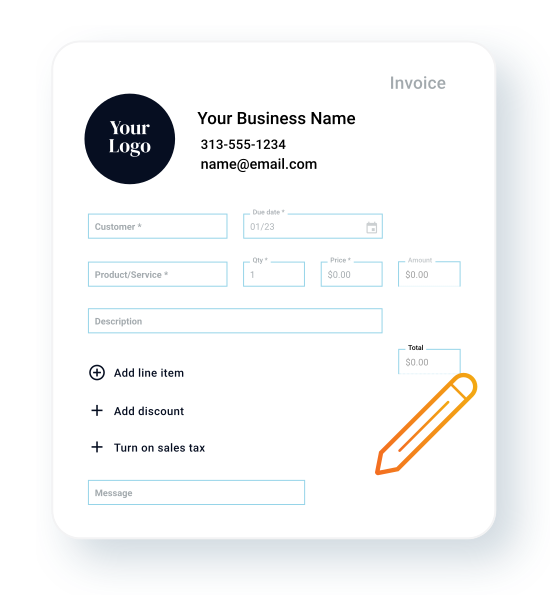
Customizable invoices to fit your customer's business. 


It’s a snap to make it professional with our template. Your business customers can upload a logo, change the colors to match branding, and create custom messages. 

Send yourself an invoice now and see how easy it is to get paid. 

Frequently asked questions


How does the integration between Autobooks and my financial institution work?

We’ve partnered with the industry’s leading digital banking providers to integrate our product suite into their existing platforms. That means that when your customers log into their account, the payment acceptance features powered by Autobooks will be available from the main dashboard or navigation, like bill pay and mobile deposit are today.

How would Autobooks complement our existing merchant services program?

Not all businesses operate in traditional retail environments. Many businesses and non-profits need to accept card payments in app and on the move, such as through an online link shared online or by text message, or through a digital invoice. Autobooks enables your financial institution to offer these capabilities so that you can serve customer segments that are not fit for traditional merchant services and treasury products. 

What’s the benefit when our customers get paid through Autobooks, versus a third-party payment acceptance app?

When businesses utilize Autobooks for receiving payments, it's akin to solidifying the direct deposit relationship of a consumer account. When the business gets paid through a service you offer, funds are deposited directly into your customers' accounts. Ensuring you lock in the full deposit relationship. This is not always the case when a customer uses a third-party app. In fact, most third-party apps compete with you for the customer deposit, transaction processing revenue, and lending opportunity. 

How much do you charge for Autobooks?

There are two types of fees associated with Autobooks: processing fees and monthly subscription fees. When a customer incurs either type of fee, a portion of the revenue is shared back with the financial institution.  

Processing fees are charged on a per transaction basis when a customer accepts a payment through Autobooks invoicing, payment links, or Tap to Pay on iPhone. Refer to our fees page for pricing details. 

Subscription fees are charged on a monthly basis only for customers that opt for the full Autobooks product suite that includes accounting, financial reporting, and payment acceptance functionality. The monthly subscription fee for the full Autobooks product suite is $9.99 a month.